onesitekit.com
SMS Opt-In & Opt-Out Flow
OneSiteKit · admin@onesitekit.com · Privacy Policy & SMS Terms · Terms of Use
Opt-In Flow
How an administrator enables SMS notifications
SMS is disabled by default. Only the user receiving the SMS can opt their own number in — administrators cannot enable SMS on behalf of another user.
Web-based opt-in (no SMS keyword). Consent is captured inside the OneSiteKit web application — a signed-in user enables alerts for their own registered mobile number, picks a delivery schedule, and checks an "I agree" box. There is no inbound opt-in keyword; users do not text a word to start. Opt-out is still keyword-based: replying STOP to any message cancels, and HELP returns help.
1
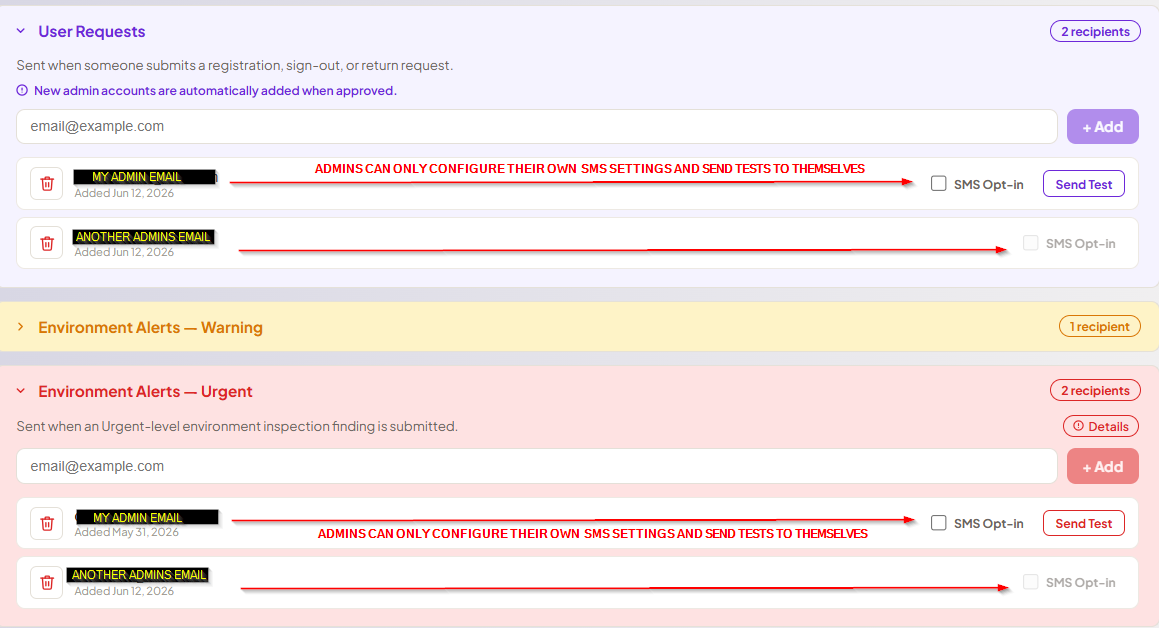
Admin navigates to Admin → Notifications
The Notifications screen lists all subscribers per notification type. Each row shows an email address and an SMS Opt-in checkbox. An admin sees the checkbox enabled only for their own row; other users' checkboxes are greyed out and non-interactive.
2
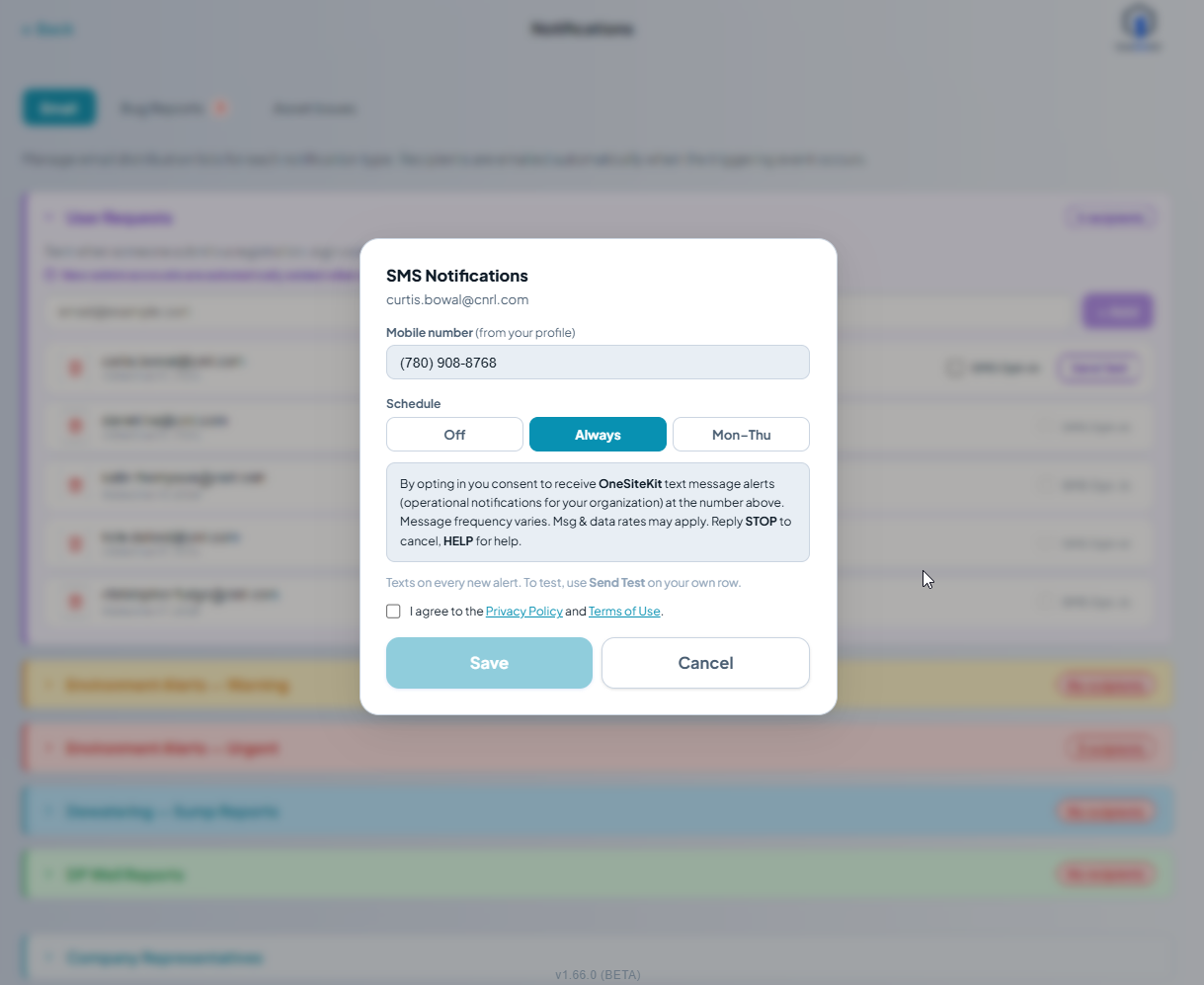
Admin clicks their own SMS Opt-in checkbox — schedule modal appears
Clicking the checkbox opens a modal confirming the mobile number registered to their profile and prompting them to choose a delivery schedule. Options are Off (opt out), Always, or Mon–Thu. When the user selects Always or Mon–Thu, the modal displays the following consent disclosure:
"By opting in you consent to receive OneSiteKit text message alerts (operational notifications for your organization) at the number above. Message frequency varies. Msg & data rates may apply. Reply STOP to cancel, HELP for help."
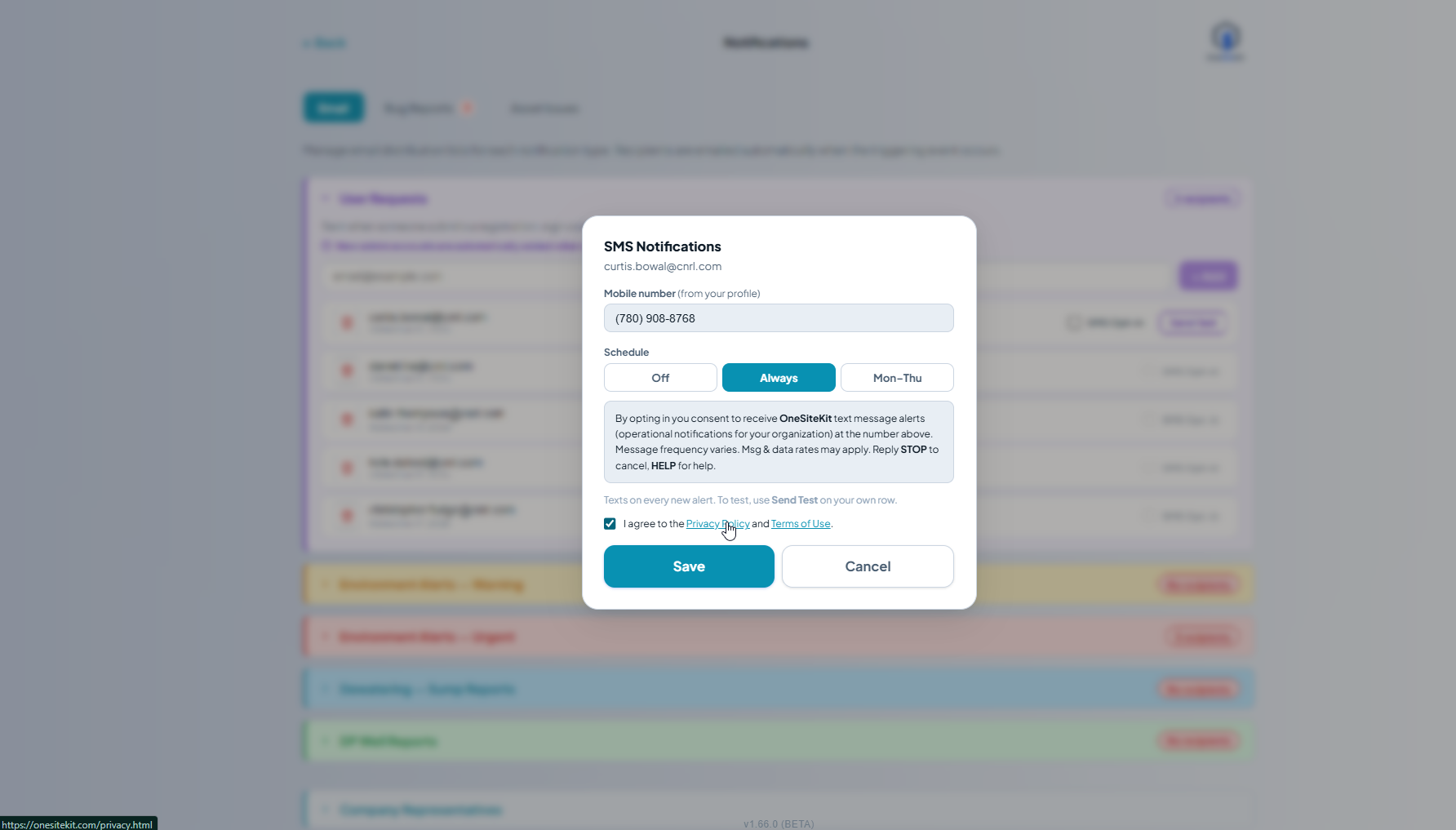
The user must check "I agree to the Privacy Policy and Terms of Use" (linked to onesitekit.com/privacy.html and onesitekit.com/terms.html) before the Save button becomes active.
3
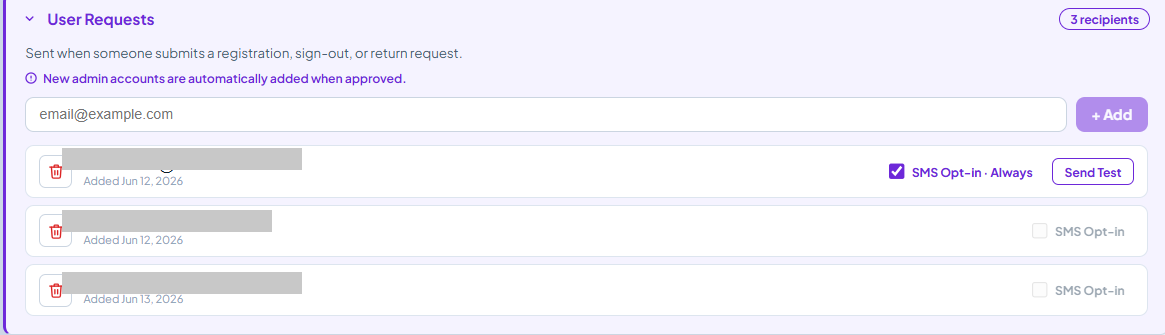
Opted-in state — row shows active schedule
After saving, the row updates to show a filled blue checkbox labelled SMS Opt-in · Always (or the selected schedule) and a Send Test button. The other admins' rows remain greyed out — each user must opt themselves in from their own account.
Consent summary: The user selects a schedule, reads the consent disclosure, checks the "I agree" box, and clicks Save. Messages are sent only to the mobile number already on their OneSiteKit profile. No phone numbers are collected from outside the platform.
Opt-Out Flow
How a user unsubscribes from SMS
Users can opt out at any time in two ways: (1) reply STOP to any SMS message, or (2) uncheck their SMS Opt-in checkbox in Admin → Notifications. Either method immediately stops further messages.
1
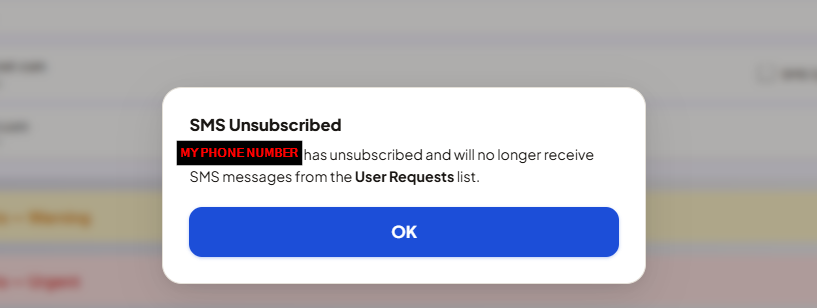
Admin unchecks their SMS Opt-in checkbox — confirmation modal appears
Unchecking the active checkbox shows a confirmation modal identifying the phone number being unsubscribed and the notification list it applies to. The user confirms by pressing OK.
STOP reply: Users may also reply STOP to any message at any time. Twilio processes the keyword and no further messages are sent to that number. The in-app checkbox is updated to reflect the unsubscribed state.
Full SMS program terms, frequency, msg & data rates, and privacy policy: onesitekit.com/privacy.html · Platform Terms of Use